Initial Ubuntu Server: Docker, GitHub Clone and SSL in a Few Commands
The open-source bash scripts I use on Ubuntu and Debian to install Docker via Iranian mirrors with a verified GPG key, clone a GitHub project without leaving the token on disk, and get free Let's Encrypt SSL, including auto-renewing wildcards via Cloudflare.
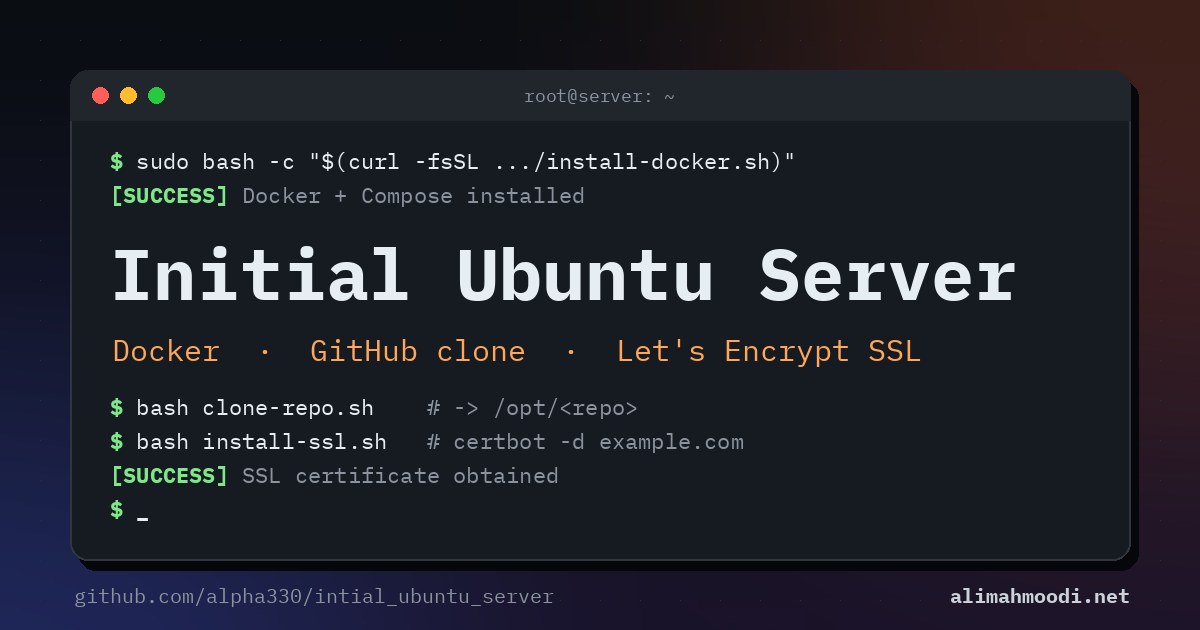
Every time I get a fresh VPS, I end up doing the same chores: install Docker, pull my project from GitHub, and get an SSL certificate for the domain. On paper that's simple. On servers inside Iran, something always breaks. One day download.docker.com is blocked by sanctions, the next day my favorite mirror returns 503, and a few months later I find that Docker logs have quietly filled the disk.
So I turned those chores into a few bash scripts and published them in a public repository, intial_ubuntu_server. This post explains what each script actually does, how to run it, and what to watch out for.
What's in the repository
There are four independent scripts:
install-docker.sh: installs Docker Engine and Compose, with Iranian mirrors and several fallbacksclone-repo.sh: installs Git and clones a public or private GitHub repository into/optinstall-ssl.sh: obtains a Let's Encrypt certificate with Certbot and sets up auto-renewaltunnel-install.sh: installs the SoftEther VPN client and OpenVPN
A few things are common to all of them:
- Root only: they stop unless they're running as root.
- OS and version check: they run only on Ubuntu 20.04+ and Debian 11+. Debian testing and sid, which have no version number, are allowed with a warning.
- Prompts come from your terminal: every question is read straight from
/dev/tty, not from standard input. So even if you pipe a script into bash withcurl ... | sudo bash, it still takes the answers from your keyboard. If there's no terminal at all (cron, CI), the script stops with a clear error instead of guessing answers.
The repository is MIT-licensed.
Step 1: Installing Docker with install-docker.sh
If Docker is already installed and running, the script first asks whether to skip the full reinstall and only configure daemon.json. That's the default, and it's what I recommend. Next it asks whether the server is inside or outside Iran, and then does the following:
- Installs prerequisites (
ca-certificates,curl,gnupgand a few more). - For a full install, removes old Docker packages.
- Fetches Docker's GPG key, first from the official site and then from the IranServer, MobinHost, Kernel and ArvanCloud mirrors. Wherever it comes from, the key is accepted only if its fingerprint matches Docker's official key (
9DC8 5822 9FC7 DD38 854A E2D8 8D81 803C 0EBF CD88), so no mirror can slip in a key of its own. If no source provides a valid key, the docker-ce repositories are skipped and only the distro's owndocker.iopackage, signed by Ubuntu or Debian, is tried. - In Iran mode, tries the mirrors in this order: IranServer, MobinHost, Kernel, Shatel, ArvanCloud. It checks each mirror's
InReleasefile and installs from the first one that answers. If they all fail, it falls back to the official Docker repository, and finally to the distro'sdocker.iopackage. - Installs
docker-ce,docker-ce-cli,containerd.io,docker-buildx-pluginanddocker-compose-plugin. - Builds the desired
daemon.jsonwith log rotation: 10 MB per file, at most 3 files. In Iran mode it also adds the registry mirrorsdocker.iranserver.com,docker.kernel.ir,docker.arvancloud.irandfocker.ir. The existing file is replaced only if the content actually differs, and it's backed up first. - Restarts Docker only if the configuration changed. If containers are running, it asks first (default: no) and warns that a restart stops them and that containers without a restart policy stay stopped.
- Checks the Docker and Compose versions and runs
hello-world.
The upshot: re-running the script on a server with live services no longer shuts anything down for no reason.
Step 2: Connecting a GitHub project with clone-repo.sh
This script installs Git if it's missing, along with curl, wget and unzip. Then it asks four questions: your GitHub username, the repository name, the branch (default main), and whether the repository is private. The project is cloned into /opt/<repo-name>, and if that folder already exists the script asks before deleting it.
For private repositories it needs a Personal Access Token, and it handles the token carefully:
- The token isn't shown while you type it and never appears in any output.
- After cloning, the remote is reset to the clean
https://github.com/<user>/<repo>.gitURL, so the token doesn't stay in.git/config. - If you want to
git pulllater without re-entering it, the script offers to store the token in a separate file,/root/.git-credentials-<repo>, with mode 600, configured for that one repository only. - The token variable is cleared after use. The script also suggests using a read-only fine-grained token scoped to that repository, or an SSH deploy key, instead of a classic
repotoken.
If cloning the branch you named fails, it tries once more with the repository's default branch. If the project root contains docker-compose.yml or compose.yml, it asks whether to start it with docker compose up -d.
Step 3: Getting SSL with install-ssl.sh
This script installs Certbot if needed, asks for your domain and email, and then offers five validation methods:
- Standalone: Certbot runs its own temporary web server on port 80. This is the only method that checks port 80. If nginx, apache2, httpd or a Docker container holds the port, the script offers to stop it temporarily. Afterwards that service is started again whether or not the certificate was issued. Pre- and post-hooks are also saved in Certbot's config, so future renewals stop and start the same service on their own.
- Webroot: challenge files go into your web server's webroot. The web server keeps running.
- Nginx: Certbot configures nginx for you. If the
python3-certbot-nginxplugin is missing, the script installs it. nginx keeps running. - Manual DNS: a TXT record you add yourself, with wildcard support (
*.domain.com). It runs interactively so Certbot can show you the record and wait. The script warns explicitly that this certificate does not auto-renew. - DNS via Cloudflare: if your domain's DNS is on Cloudflare, this is the best option for wildcards. The script installs
python3-certbot-dns-cloudflare, asks for an API token without echoing it, and stores it in/root/.secrets/certbot/cloudflare.iniwith mode 600. The certificate renews fully automatically. Create the token in the Cloudflare dashboard with the "Edit zone DNS" template, limited to that zone.
Certbot runs with --cert-name <domain>, so the certificate always lives in /etc/letsencrypt/live/<domain>/. After issuance the script checks auto-renewal. If Certbot's systemd timer isn't active, it creates a cron job at /etc/cron.d/certbot-renew that tries to renew twice a day. Finally it runs certbot renew --dry-run for this certificate only. That test is skipped for manual DNS certificates, since it would fail without a hook.
Prerequisites
- An Ubuntu 20.04+ or Debian 11+ server
- Root access and an interactive SSH session, since the scripts ask questions
- Internet access to GitHub, the Docker mirrors and Let's Encrypt
- For SSL with Standalone, Webroot or Nginx: the domain's A record must point to the server's IP, and port 80 must be reachable from the internet. The script doesn't touch port 443, but you'll need to open it in your firewall to actually serve HTTPS.
- For the Cloudflare method: an API token with Zone:DNS:Edit permission
- For private repositories: a GitHub Personal Access Token or a deploy key
Quick start
Every script can run straight from GitHub, without cloning the repository. The natural order is:
# 1. Install Docker
sudo bash -c "$(curl -fsSL https://raw.githubusercontent.com/alpha330/intial_ubuntu_server/main/install-docker.sh)"

# 2. Clone your GitHub project into /opt
sudo bash -c "$(curl -fsSL https://raw.githubusercontent.com/alpha330/intial_ubuntu_server/main/clone-repo.sh)"

# 3. Obtain an SSL certificate
sudo bash -c "$(curl -fsSL https://raw.githubusercontent.com/alpha330/intial_ubuntu_server/main/install-ssl.sh)"
Because prompts are read from the terminal, the pipe form works too:
curl -fsSL https://raw.githubusercontent.com/alpha330/intial_ubuntu_server/main/install-docker.sh | sudo bash
On a production server, the safest habit is to read the code first and then run it:
curl -fsSL -o install-docker.sh https://raw.githubusercontent.com/alpha330/intial_ubuntu_server/main/install-docker.sh
less install-docker.sh
sudo bash install-docker.sh
main can change at any time. To always run exactly the code you reviewed, put a commit SHA in the URL instead of main. For example, the version this article is based on:
sudo bash -c "$(curl -fsSL https://raw.githubusercontent.com/alpha330/intial_ubuntu_server/6bec12ecbd6f6f08e9f4d2d19618797cc36b45f7/install-docker.sh)"
Avoid sudo bash <(curl ...), because sudo closes the process-substitution file descriptor. Afterwards you can check everything with:
docker --version
docker compose version
sudo certbot certificates
sudo certbot renew --dry-run
Customization
The scripts are short and readable, so they're easy to adapt if you fork the repository:
- Mirror order: the
IRAN_MIRRORSarray ininstall-docker.sh. Put whichever mirror works best from your data center first. - Registry mirrors and log rotation: the
daemon.jsonblock, includingmax-sizeandmax-file. - Clone location:
TARGET_DIRinclone-repo.sh, which defaults to/opt/<repo>. - Post-renewal hook: the
--deploy-hookin the cron job. If your web server runs in Docker, replacesystemctl reload nginxwith something likedocker compose restart. - Other DNS providers: for Route53, DigitalOcean and others, install that provider's Certbot plugin (for example
python3-certbot-dns-route53) and run Certbot with it directly. - If you fork it, change the
raw.githubusercontent.comURL in the commands above to point at your fork.
Bonus script: tunnel-install.sh
This script detects the architecture (amd64, arm64, i386 or armhf) and downloads SoftEther VPN Client v4.44 from SoftEther's official GitHub releases. On amd64 and arm64 it compares the archive's SHA256 against a value pinned in the script and aborts on a mismatch. i386 and armhf have no pinned hash, so continuing requires your explicit confirmation, and the default is to abort.
It then compiles the client, installs it into /usr/local/vpnclient, creates a vpnclient systemd service and installs OpenVPN. The Network Manager plugin is only useful on desktops, so it's optional and defaults to no.
Security notes and remaining limitations
Most of the issues the first versions had are fixed now. A few things remain that you should know about:
- Root, latest version: everything runs as root, and the commands above fetch the latest
main. On production, read the code first or pin a commit SHA. - Checksums on i386 and armhf: SoftEther doesn't publish official hashes for these architectures, so the download only continues with your confirmation and without hash verification.
- Manual DNS renewal: certificates from method 4 don't auto-renew. Re-run the script before the 90 days are up, or use method 5 (Cloudflare) or your DNS provider's plugin.
- Re-running the SSL script: every run requests the certificate from Let's Encrypt again. Let's Encrypt has rate limits on issuance, so use
certbot renew --dry-runfor testing rather than running the script repeatedly. - Renewal cron job: it only reloads nginx installed on the host itself. If your web server runs in a container, change the hook as described under Customization.
Troubleshooting tips
No terminal (TTY) available for interactive prompts: you ran the script without a terminal, for example from cron or CI. Run it from an interactive SSH session.curl: (7) Failed to connect to download.docker.com: run the script again and choose option 1 (Iran). If every method fails, the script suggests switching the server's DNS to178.22.122.100(Shecan).does NOT match Docker's official fingerprint: a mirror served a different key and it was rejected. The script moves on to the next source automatically.[[: not found: you ran the script withsh. Always usebash.Repository not found: double-check the username and repository name. For private repos, the token needs access to that repository and must not be expired.Could not bind to port 80: in Standalone mode, let the script temporarily stop whatever holds port 80, or use the Webroot or Nginx method.- Certificate renewal problems: check
/var/log/letsencrypt/letsencrypt.logand runcertbot renew --dry-run --verbose.
Wrapping up
intial_ubuntu_server isn't meant to replace Ansible or Terraform. It's a small, readable toolbox that does the repetitive parts of server setup in a few minutes and accounts for problems specific to Iranian servers, like sanctions and flaky mirrors. The latest version is also safer and more reliable: Docker's GPG key is verified, the token doesn't stay on disk, re-runs don't shut things down for no reason, and the piped one-liner works. These days I prepare every new server with the same three commands: Docker, clone the project, SSL.
The full code is on GitHub: github.com/alpha330/intial_ubuntu_server. If it helps you, give it a star, and if you find a bug or have an idea, open an issue or a pull request.

Comments
Loading comments...